
Routing groups
A routing group contains a prioritized list of destinations. When Live Hub receives a call, it tries the first destination in the list. If that destination does not respond, Live Hub automatically tries the next destination, and continues until it finds an available route. Routing groups help maintain service availability when a bot, contact center, SIP trunk, or Microsoft Teams connection becomes unavailable or stops responding.
A routing group is not a routing rule. After you create a routing group, select it as the destination in a routing rule. When a call matches the rule, Live Hub routes the call to the group and then tries the group's destinations in priority order.
An account can contain up to 100 routing groups.
Add a routing group
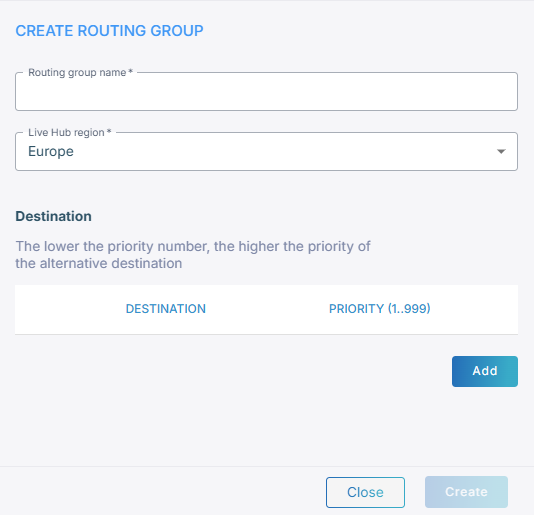
When you create a routing group, specify a name and region, and then add destinations in the order that Live Hub should try them.
To add a routing group:
-
In the Navigation pane, select Routing, and then select the Routing groups tab.
-
Click Add new routing group.
-
In the 'Routing group name' field, enter a name.
-
From the 'Live Hub region' drop-down list, select the region your Live Hub voice infrastructure runs in. See Global region support.
-
Under Destination, click Add, and then fill in the row:
- From the 'Destination' drop-down list, select where the call goes: a bot, a phone number, a SIP connection, or a Teams connection.
- From the 'Priority' drop-down list, select a number from 1 to 999.
-
Click Add again for each further destination, or click Remove to delete one. A group can hold up to five destinations.
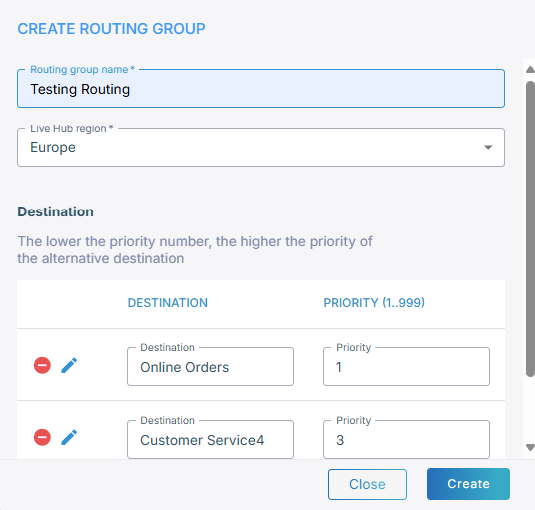
The lower the number, the higher the priority. A destination at 1 is tried before one at 3.
-
Click Create.
Edit a routing group
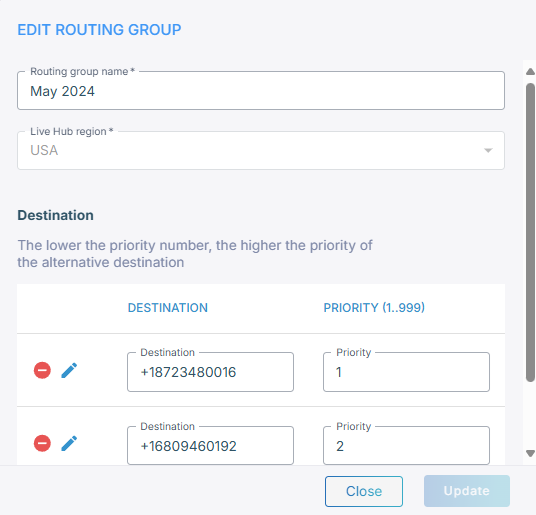
You can edit a routing group to change its name, region, or list of destinations.
To edit a routing group:
-
In the Navigation pane, select Routing, and then select the Routing groups tab.
-
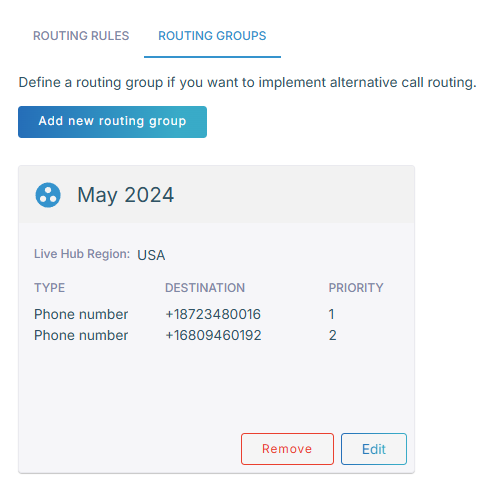
On the group you want to change, click Edit.
-
Make your changes, and then click Update.
Delete a routing group
Deleting a routing group also deletes all routing rules that use the group as their destination.
To delete a routing group:
-
In the Navigation pane, select Routing, and then select the Routing groups tab.
-
On the group you want to remove, click Remove, and then confirm with Delete.